How to Transcribe a Conversation
Whether it's a meeting, interview, lecture, or brainstorm — here are the simplest ways to turn a conversation into text.
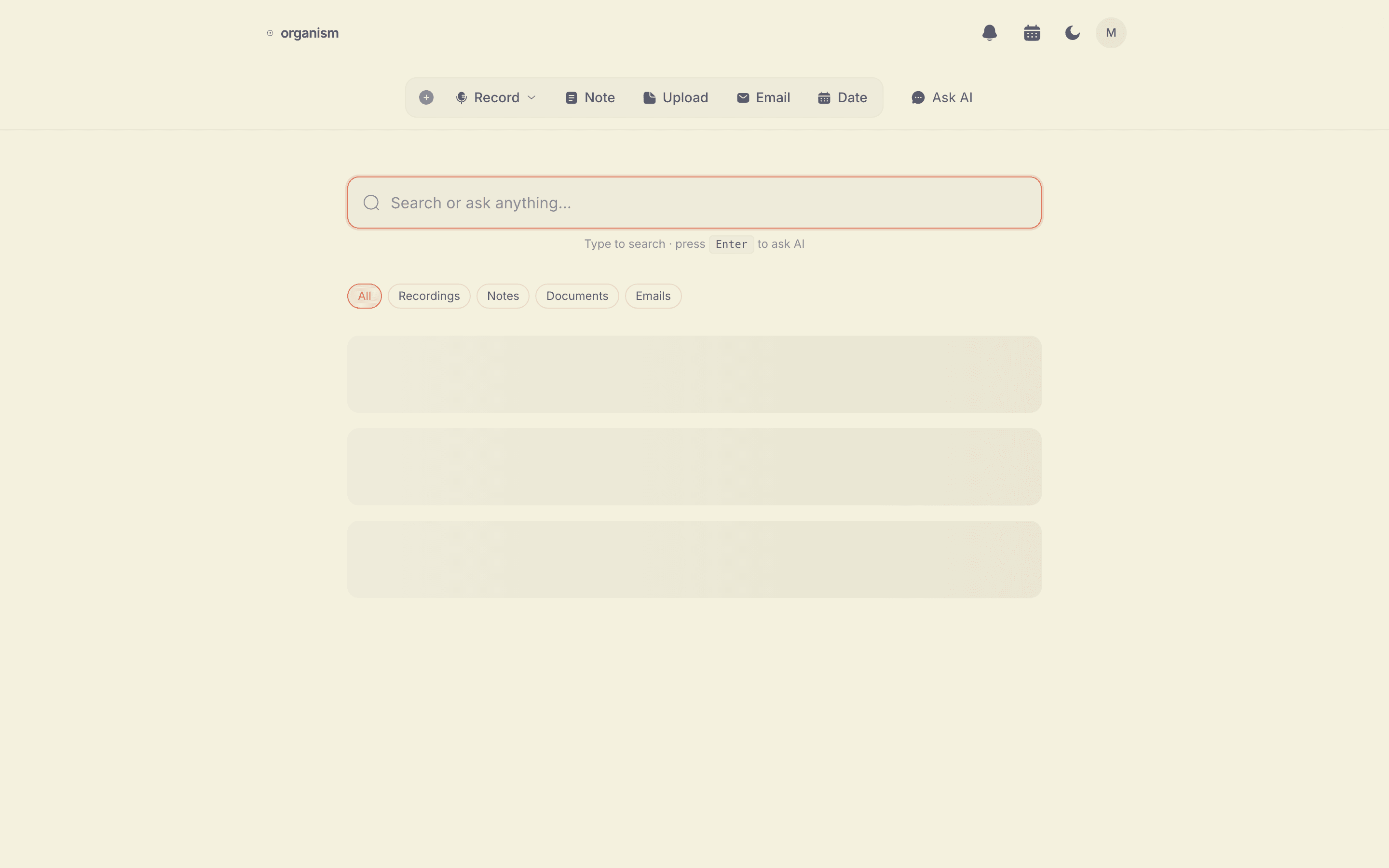
Method 1: Use a Free Browser Tool (Fastest)
The easiest way to transcribe a conversation is with a browser-based recorder like Organism. No software to install, no account to create — just open the page and press record.
Step 1: Open the recorder
Go to tryorganism.com in Chrome, Edge, or Safari. The recorder loads instantly — there's nothing to download or sign up for.
Step 2: Press record and have your conversation
Click the microphone button to start recording. Speak naturally — the tool captures your words using your browser's built-in speech recognition. Your audio stays on your device and is never uploaded.
Step 3: Stop recording
When you're done, press stop. The AI automatically cleans up your transcript: fixing grammar, removing filler words like "um" and "uh", correcting punctuation, and breaking the text into readable paragraphs.
Step 4: Copy, download, or email
Your polished transcript is ready immediately. Copy it to your clipboard, download it as a text file, or email it to yourself for safekeeping.
Method 2: Manual Transcription
You can always transcribe by hand — listen to a recording and type what you hear. This gives you full control over formatting but is extremely time-consuming. Expect to spend 3-4 hours transcribing a 1-hour conversation.
Manual transcription makes sense for short clips or when you need absolute precision (legal proceedings, academic research). For everyday use, an automated tool saves significant time.
Method 3: Upload-Based Services
Services like Otter.ai, Rev, and Descript let you upload audio files for transcription. These work well for pre-recorded audio, but they typically require an account, may have free tier limits, and process audio on their servers.
If you're recording a live conversation (not uploading a file), a real-time browser-based tool like Organism is faster since it transcribes as you speak.
Tips for Better Transcription Accuracy
- Reduce background noise — Find a quiet room or use a directional microphone. Background noise is the biggest source of transcription errors.
- Speak clearly and at a natural pace — You don't need to speak slowly, but avoid mumbling or talking over each other.
- Use Chrome for best results — Google Chrome has the most accurate speech recognition engine of any browser.
- Use an external microphone — Even a basic headset microphone is significantly better than a laptop's built-in mic.
- Keep the browser tab active — Some browsers pause speech recognition when the tab is in the background.
Common Use Cases
- Meeting notes — Record team meetings and get searchable notes automatically. Learn more about meeting transcription.
- Interviews — Capture interview responses without taking notes by hand.
- Lectures and classes — Record lectures and review transcripts later for study.
- Brainstorming sessions — Capture ideas as they flow without interrupting the creative process.
- Doctor visits — Record medical appointments to review instructions later (with permission).
Transcribe It Together
If you and a partner both need what came out of a conversation — a landlord call, a doctor visit, a planning talk — a shared space means neither of you has to relay it secondhand.